Uspacy
Step 1: Connecting Viber in Uspacy
1) You need to log in to your Uspacy portal.
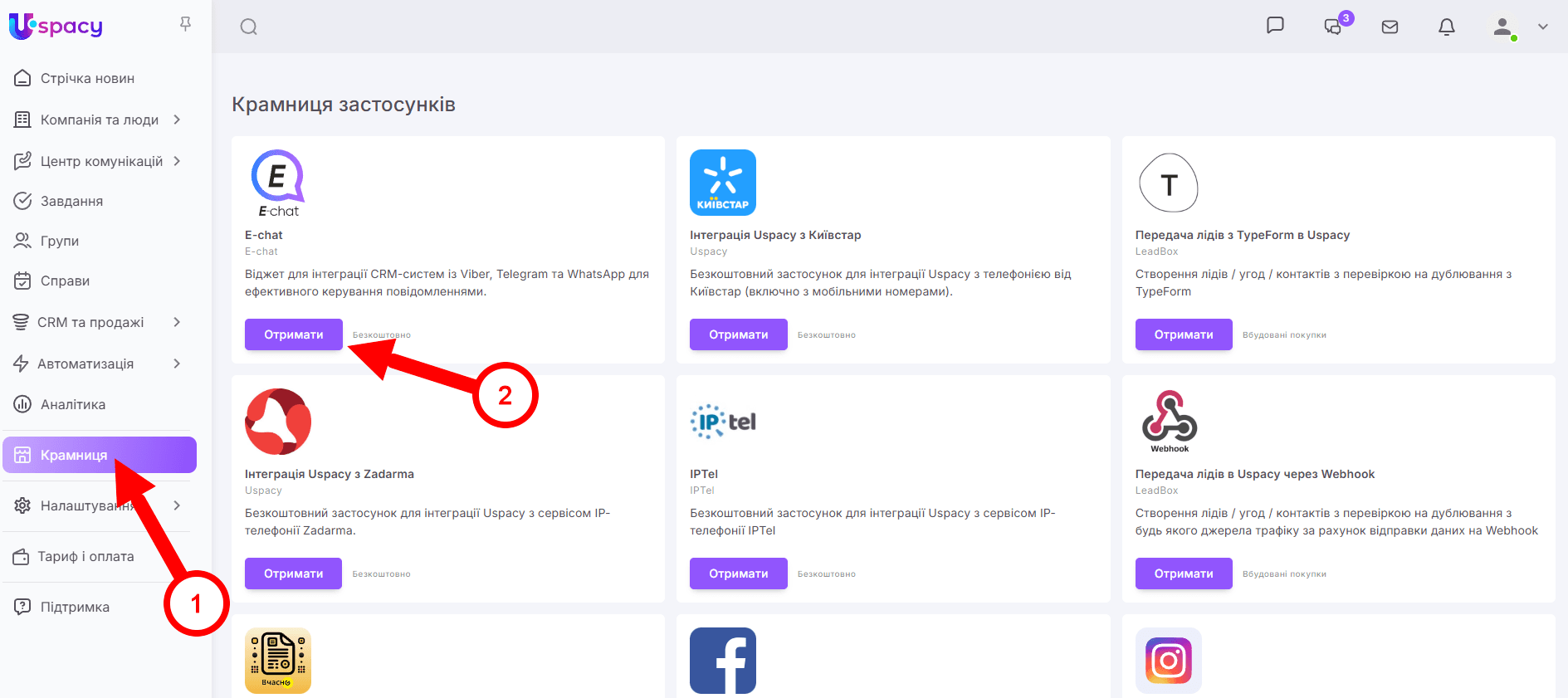
2) Go to the “Крамниця” section and click on the “Отримати” button in the “E-chat” app area.
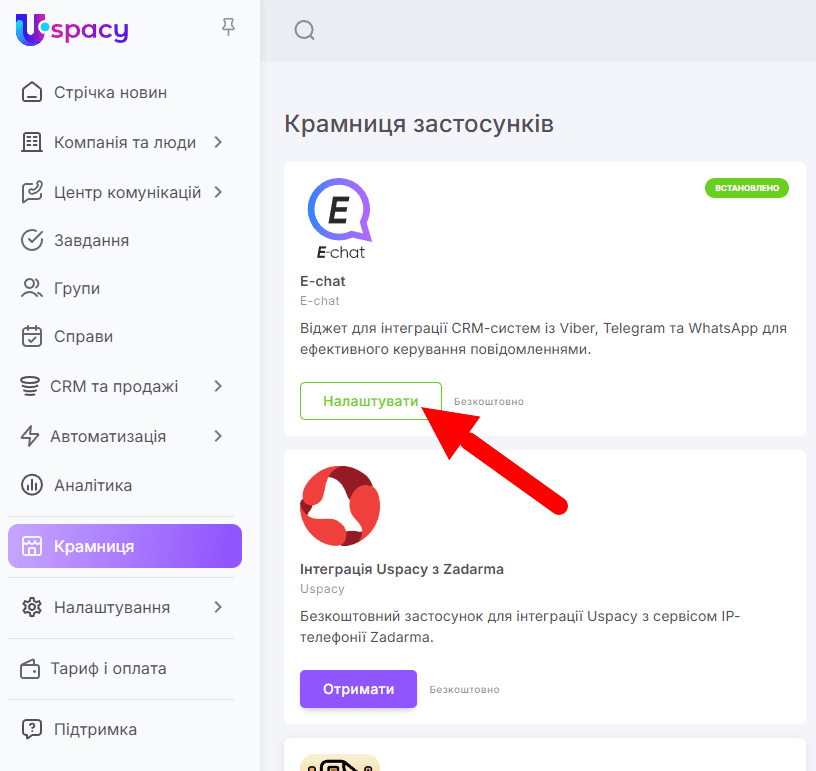
3) After installing the application - go to the settings section by clicking on the “Налаштувати” button.
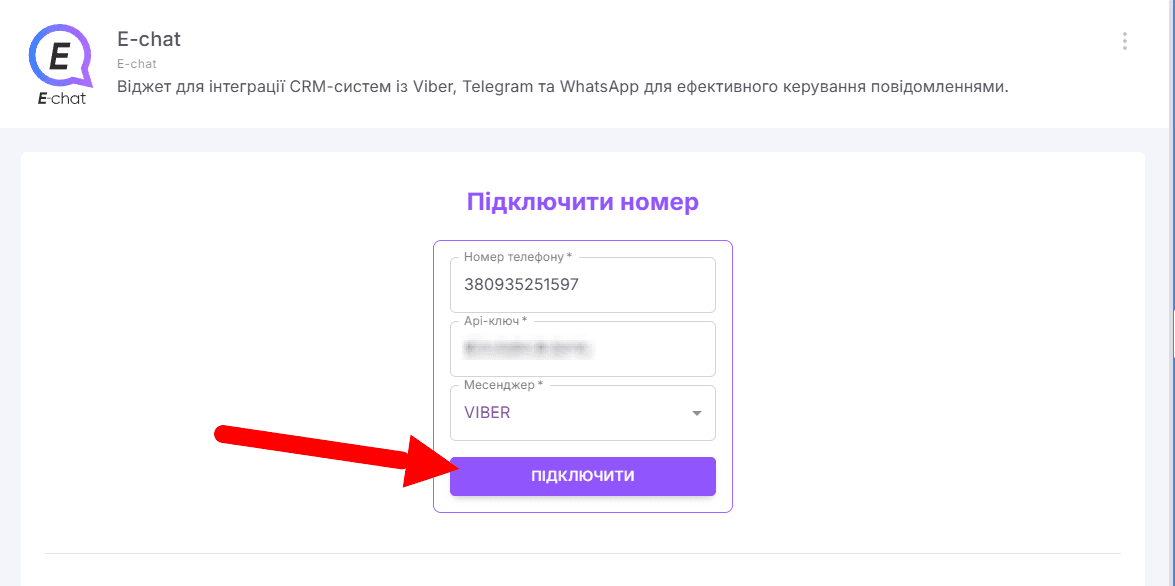
4) In the provided form you need to fill in the following fields:
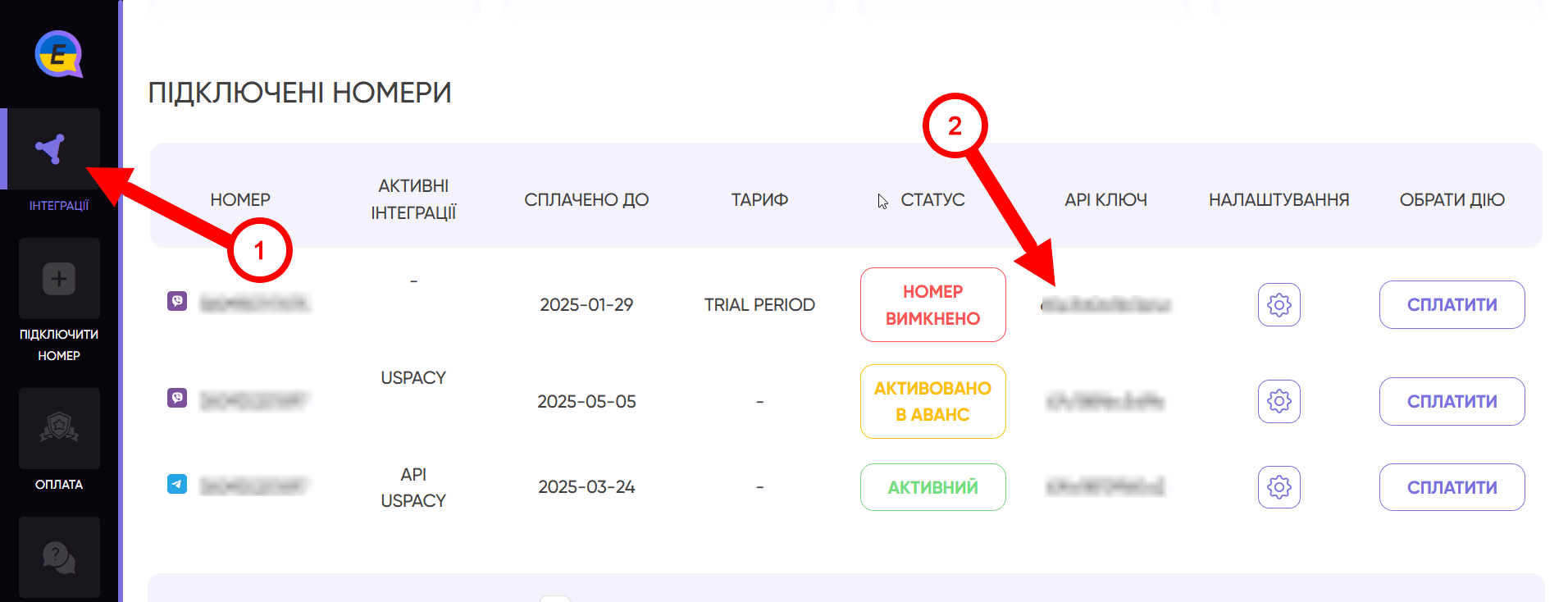
- Номер телефону - enter the phone number that you added in your personal account on the E-chat. website. (the number must be active)
- Api-ключ - you can also find the API-key from your number in your personal cabinet on the E-chat website. In the integration section, it will be listed in the corresponding column, next to the number to be connected.
- Мессенджер - specify the messenger you plan to connect.. (Viber\Telegram\WhatsApp)
5) After filling in all the fields - click on the button: “Connect”.
Done. The integration has been successfully created.
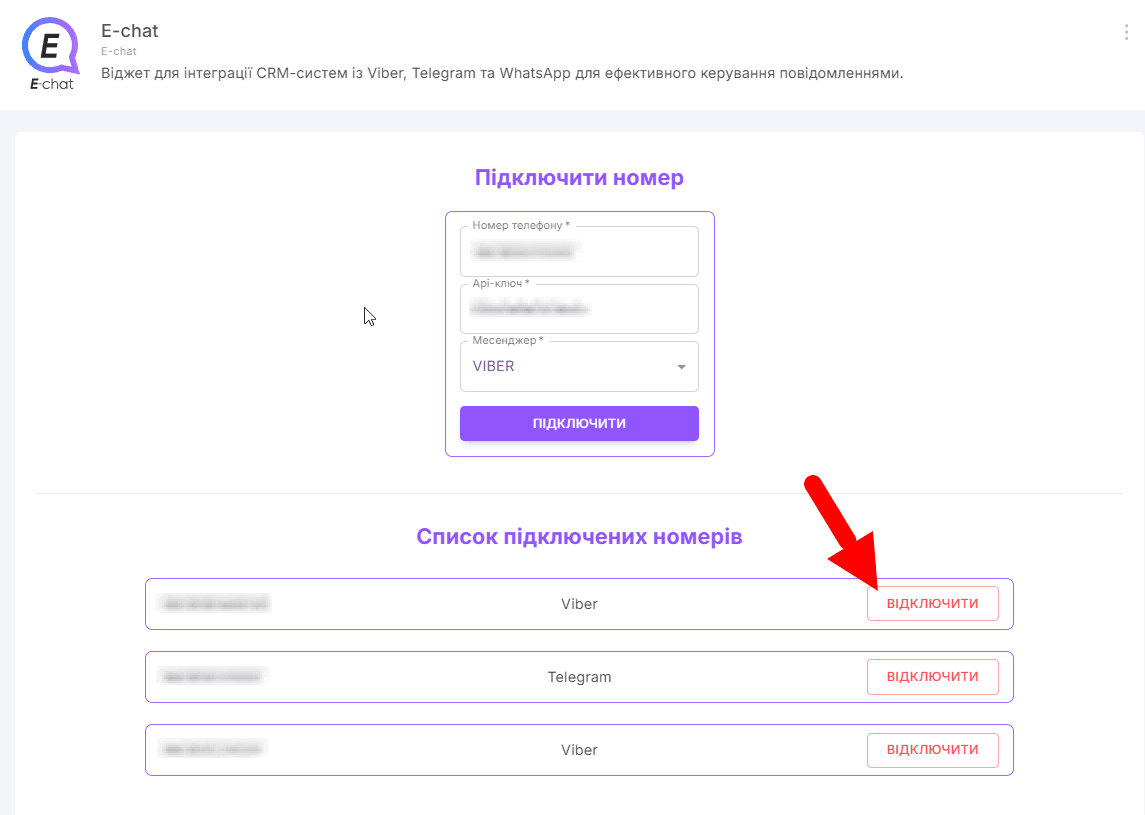
You can find the list of connected numbers in the “E-chat” application, in your Uspacy portal.
To disconnect the number, you need to click on the “Вiдключити” button
Step 2: Initiate correspondence with a new user:
1) To initiate correspondence, you need to create an entity with the user's phone number.
It can be a Lead, Deal or Contact.
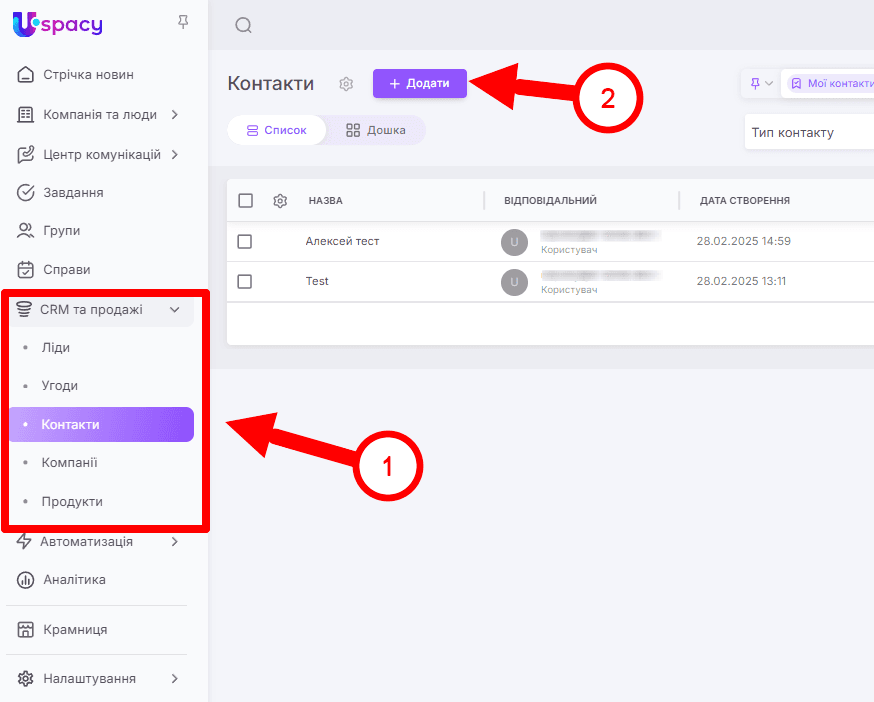
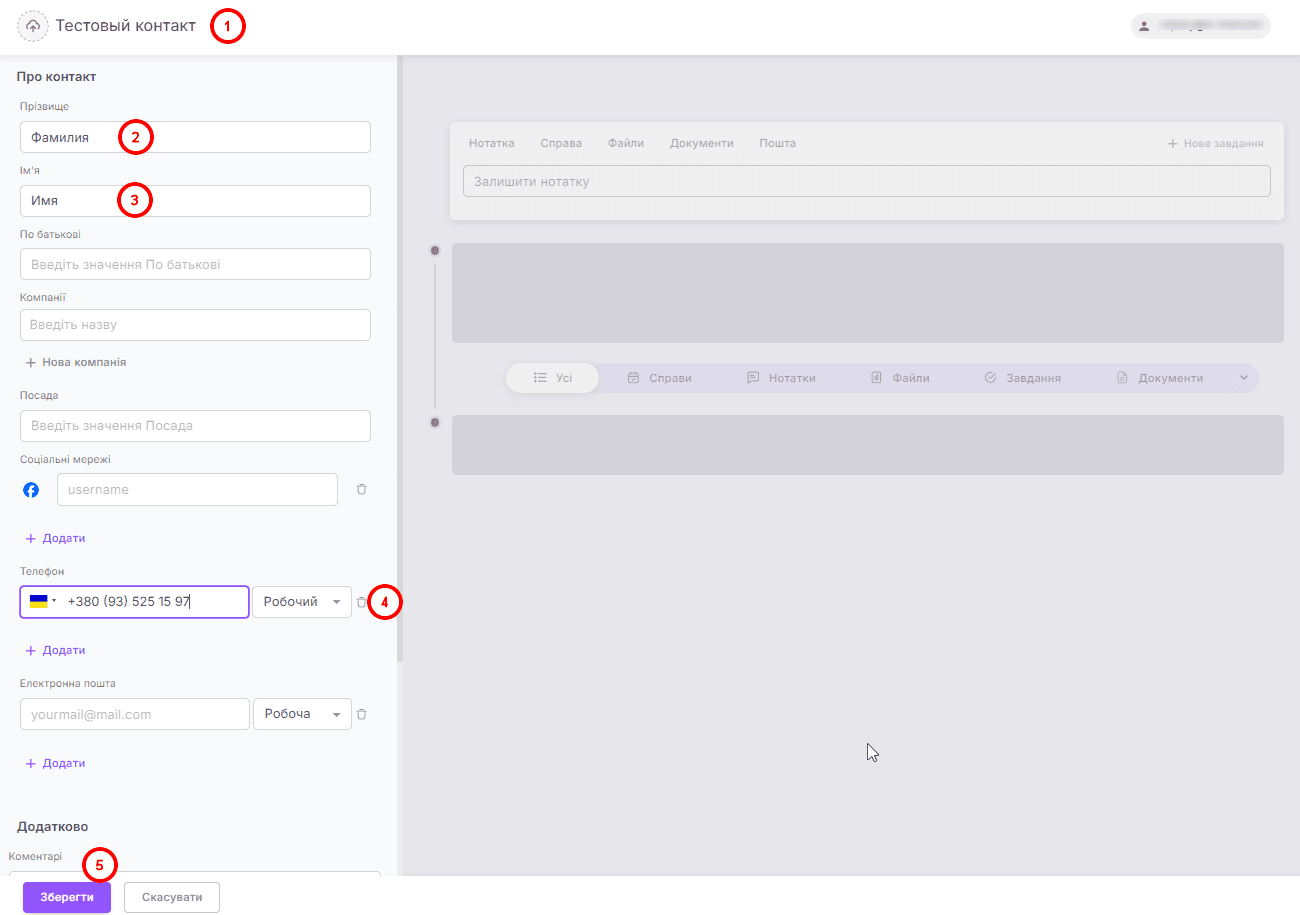
2) Create the entity you need and specify the phone number of the user with whom you want to initiate a dialog and click the “Save” button.
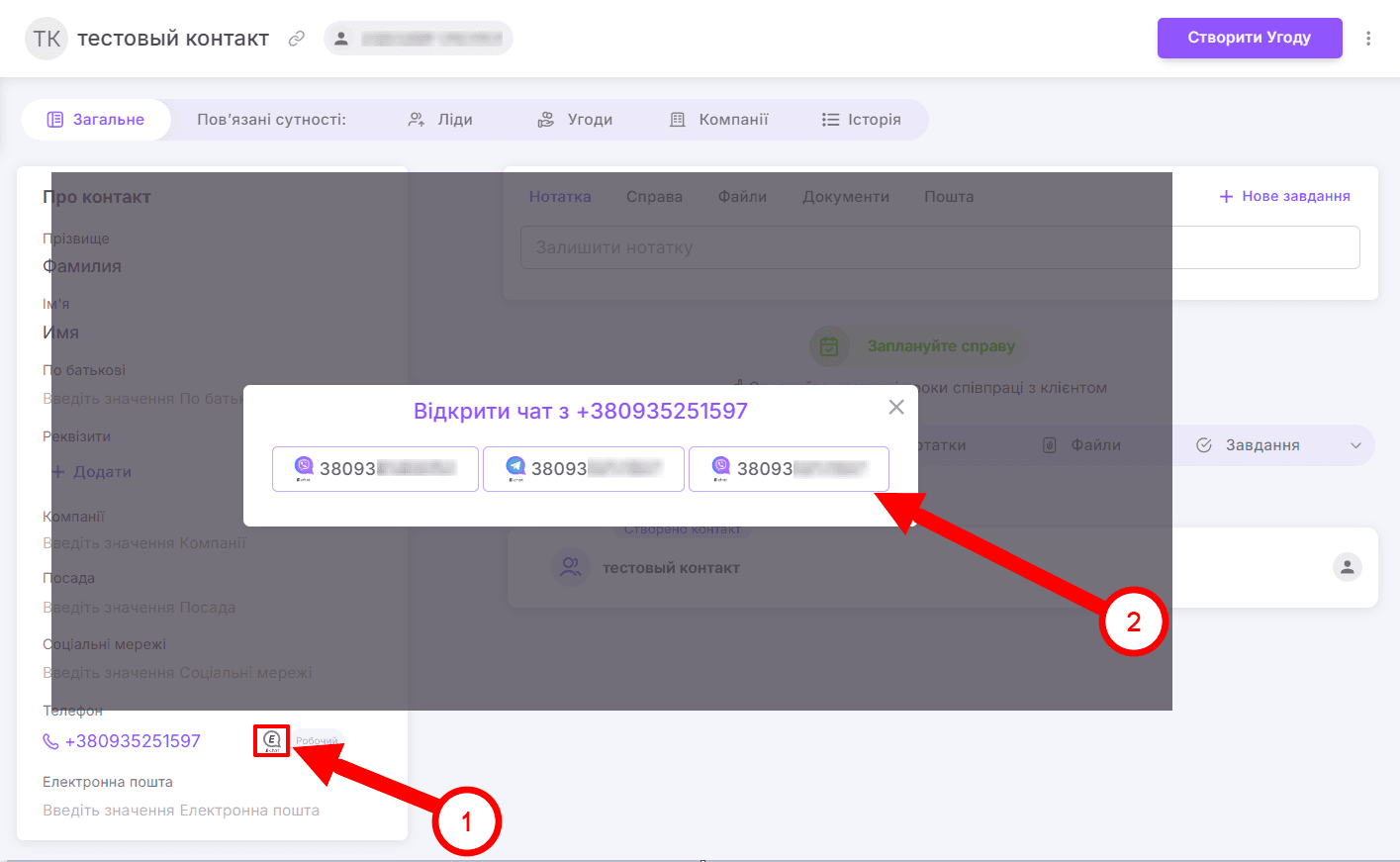
3) Open the created entity and click on the “E-chat” icon next to the contact number. You will be presented with a window to select the account from which to initiate the dialog. (sending a message)
4) After selecting the desired account for initiation, a chat will be generated in the “Communication Center” → “External Channels” section.
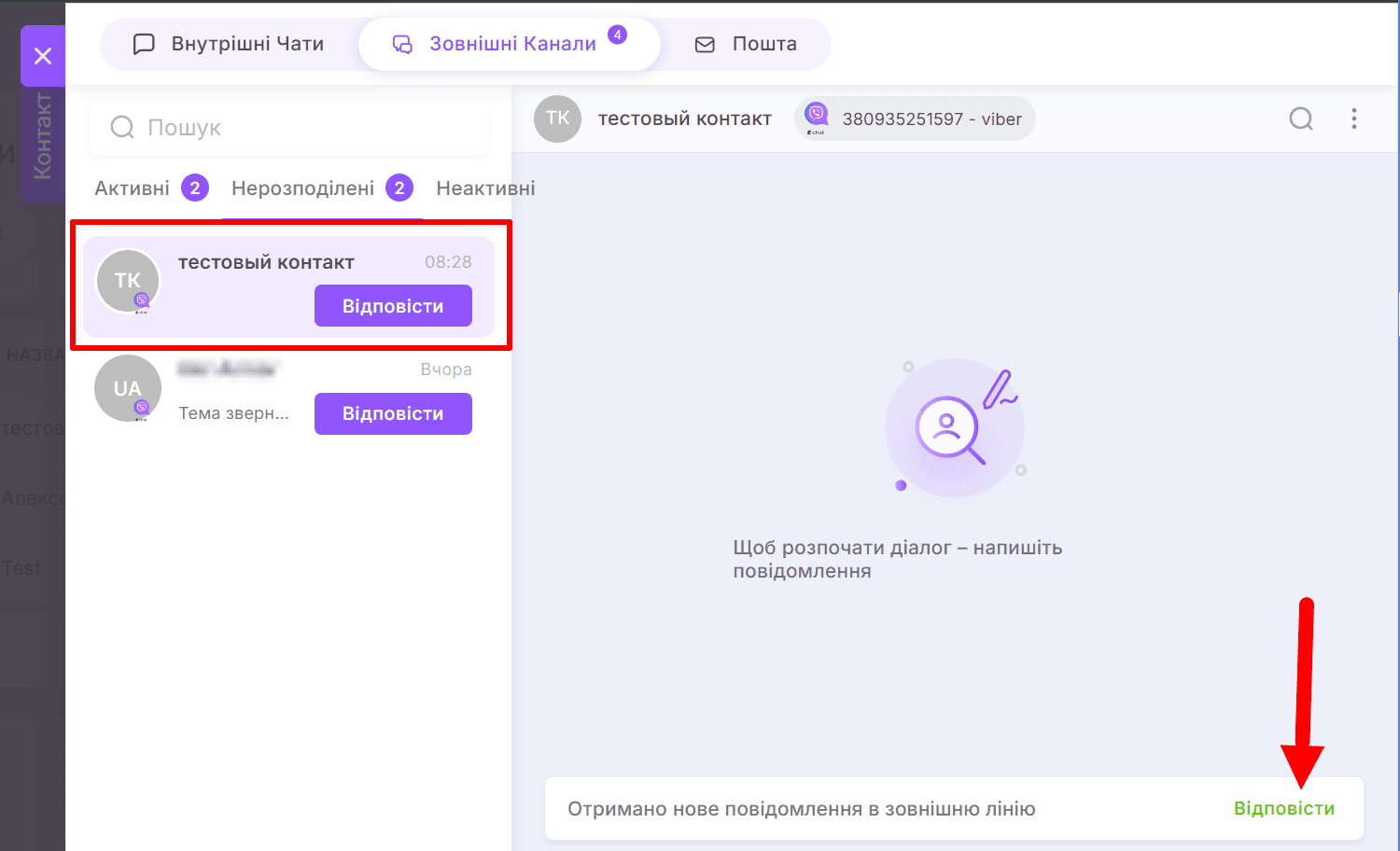
5) In the received chat, in order to send a message, you should press the “Reply” button, enter the desired message in the input field and press the send button.
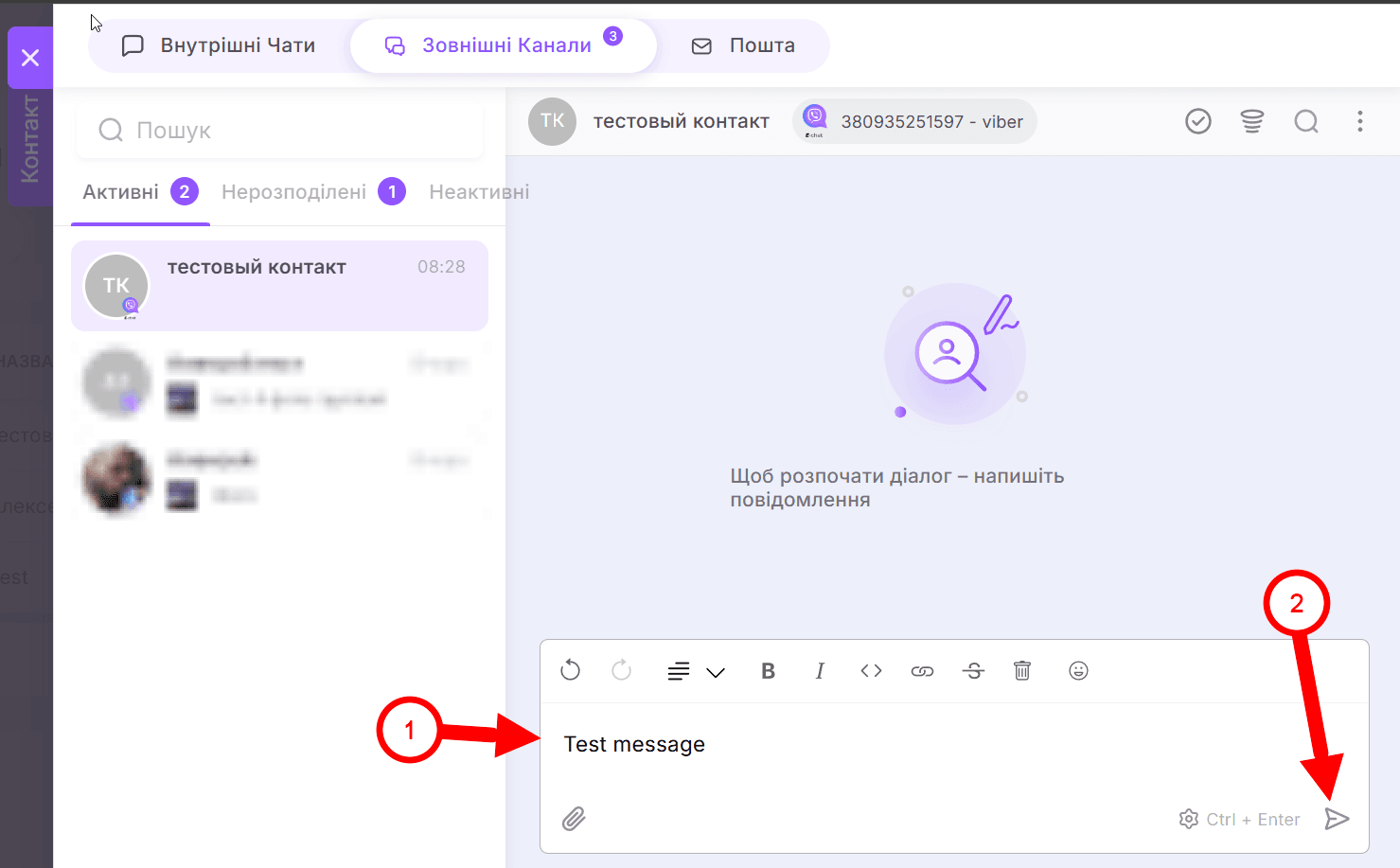
Done. You have sent the first message.